
Table of Contents
Interactive Demo Walkthrough
Demand Coverage Report Use Cases and Benefits
Required Permissions
Report Location
How to Read the Demand Coverage Report
1. Header Metrics
2. Visualization Chart
3. Detailed Grid
Customizing Demand Coverage Report
Filtering
Saving Filters
Sharing Filters
Changing Views
Roles View
Months View
Adjusting Columns
Selecting Assignment Statuses
Exporting Data
Metrics: Definitions and How They Are Calculated
Additional Fields Glossary
Business Scenarios for Strategic Decision-Making
Scenario 1: Do We Have the Right People for Q3?
Scenario 2: Where Do We Have Underused Talent?
Scenario 3: Can We Handle New Client Work?
Scenario 4: Why Are Some Projects Delayed?
Scenario 5: Where Are Our Bottlenecks for Next Quarter?
Frequently Asked Questions
Interactive Demo Walkthrough
Explore BigTime Resource Management Demand Coverage report below with an interactive demo. To begin, click Get Started to navigate seamlessly through the interface and discover a feature. You can restart the demo at any time.
Demand Coverage Report Use Cases and Benefits
The Demand Coverage Report helps you identify capacity gaps across roles, so you can act before they impact delivery. This guide covers everything you need to understand, use, and make decisions based on the report.
The report helps answer critical planning questions such as:
- Do we have enough people to fulfill the upcoming project needs?
- Which roles are at risk of being overutilized or underutilized?
- Where do we need to hire, shift assignments, or reprioritize?
By surfacing discrepancies between Demand Hours and Available Capacity, the report supports:
- Proactive staffing decisions
- Capacity planning across departments or roles
- Resource allocation optimization
- Forecasting bench availability
According to our customers, this report helps reduce planning delays by up to 40% and gives delivery teams more control over upcoming project risk.
The Demand Coverage Report compares Demand Hours with staff capacity and scheduled work for each role. It does not use actual tracked time. After the Time & Assignment Decoupling release, this report relies entirely on scheduled assignments (Active, Reserved, Draft) and staff availability.
Required Permissions
To access the Demand Coverage Report, users must have:
- Access to the Resource Management in BigTime (if you don’t have this yet please contact your Customer Success Manager or support.
- View/Manage any project permission enabled.
| Required Permissions | |
| Demand Coverage Report | View/Manage Any Projects |
To set up required permissions follow steps below:
| Click Close Resource Management button at the top of the left navigation bar ➡ You’ll be redirected to BigTime ➡ Click My Company Tab ➡ Go to the User Rights section ➡ Select the Security Group ➡ Select Client & Project Access ➡ Turn the View/Manage any project permissions on |
Report Location
Follow the steps below to get to the Demand Coverage Report in Resource Management:
| BigTime Resource Management ➡ Manager Role Account ➡ Reports Tab on the left navigation bar ➡ Demand Coverage Report |
You’ll find the Demand Coverage Report listed alongside other key Resource Management reports such as Utilization, Projects Finances, and Availability.
How to Read the Demand Coverage Report
The report consists of three main sections:
1. Header Metrics
Metric Description Demand Roles Number of unique roles within the filtered view Demand Hours Total hours requested for a role across all active demands Hours Fulfilled Total scheduled hours across Active, Reserved, and Draft assignments (Actual time entries are not included) Remaining Time Demand Hours − Hours Fulfilled Available Capacity Staff capacity (minus time-off/holidays) − Hours Fulfilled
Important:
Hours Fulfilled is 100% schedule-based after decoupling — time entries no longer influence this report.
2. Visualization Chart
The chart visualizes whether each role has enough scheduled capacity to meet demand.
It compares:
- Demand Hours (bar height)
- Capacity Hours (orange line)
- Available Capacity (blue striped area)
- Hours Fulfilled (green filled area from Active + Reserved + Draft assignments)
Hovering a bar shows:
- Breakdown per month
- Scheduled work per assignment status
- Remaining unmet demand
3. Detailed Grid
Each row displays:
- Role
- (Optional) Task Name, if demands are associated with tasks
- Demand Hours
- Hours Fulfilled (Active + Reserved + Draft)
- Fulfillment % = Hours Fulfilled / Demand Hours
- Remaining Time
- Capacity Hours
- Available Capacity
Note:
The grid is not influenced by Actual tracked time from Scheduled vs Actual reporting.
Learn more about how we calculate indicators in the Metrics: Definitions and How They Are Calculated section.
Use the table to drill down into staffing levels (e.g., Junior, Mid, Senior) and examine fulfillment patterns per project.
Customizing Demand Coverage Report
Filtering
You have several filtering options available in the Demand Coverage report. You can filter by both the demand list and the project list. To add filters, click the Add Filter button and select the filters you’re interested in. When you select a filter, a configuration window will appear with additional settings. To learn more about how filters work, see the guide Using Filters in BigTime Resource Management.
Views can be saved for repeated use, such as hypothetical examples listed below:
- Q2 Design Demand
- Unfilled PM Roles
- NY Office Only
Saving Filters
Once you’ve configured your filters, you can save them and reuse them anytime. More details about saving filters are available in the same filtering guide, Saving Filter section.
Sharing Filters
You can also share your filter setups with other users via a link, as long as they have similar access permissions.
Changing Views
The Demand Coverage Report lets you switch between two views: Roles View and Months View, depending on how you want to analyze your data.
Roles View
Roles View displays each role as a separate bar on the chart.
Each bar summarizes total demand, capacity, and fulfilled hours for that role over the selected time range.
- This view doesn’t break data down by time — use Months View for that.
- Instead, each bar = one role, and the chart compares how well each role is staffed during the filtered period.
It’s the best for spotting staffing gaps or overallocations for specific roles within the selected timeframe. You can immediately see that, for example, your Art Director role is undercovered during the selected period — even without applying additional filters.
| Tip: Choose Roles View when you're focused on operational decision-making — e.g., “Do we have enough PMs next month?” |
Months View
Months View displays data grouped by time period (e.g., months), allowing you to break down demand trends over time for a particular attribute such as skill, role, or project.
It’s the best for forecasting demand and capacity for specific skills or project assignments across future months. Make the most of this view by applying filters — here are a few we recommend.
Use Cases and Filters Recommendations:
- Apply the Skill filter to explore demand for “PHP” skills across the organization and identify if those staffers are benching or overloaded.
- Use the Project filter to assess upcoming needs by project.
- Combine with Default Role for strategic monthly planning.
| Tip: Choose Months View when you want to spot longer-term trends or model demand for specific skills or project portfolios. |
Adjusting Columns
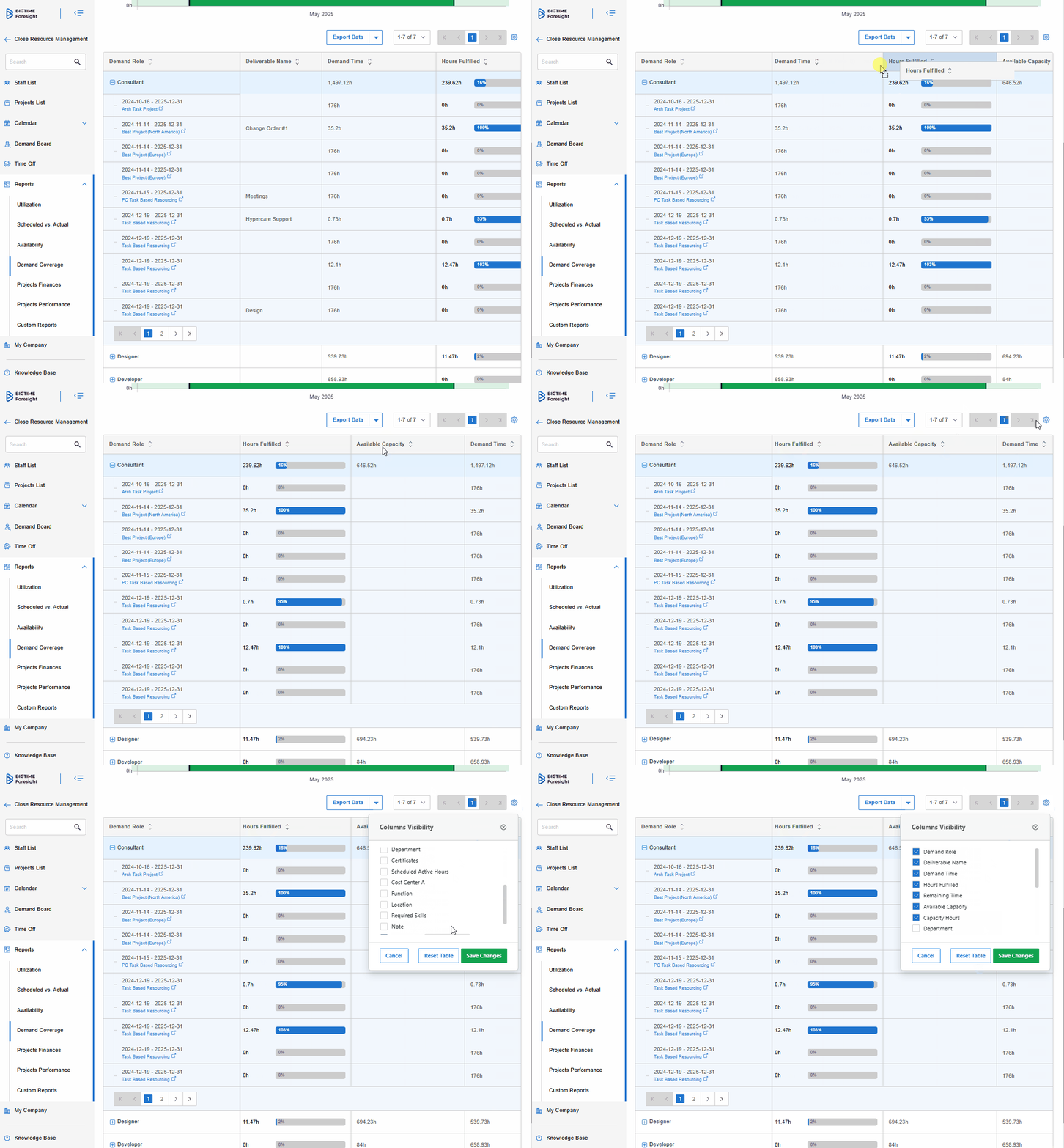
Customize your report by:
- Adding or removing columns (e.g., Skills, Certificates, Custom Fields)
- Reordering columns
- Saving personalized views
- Using column visibility toggles to focus on relevant data
Selecting Assignment Statuses
You can quickly choose which assignment statuses you want to include in your Demand Coverage report. To adjust the types of assignments shown, use the status filter located just below the search bar.
Statuses included in the report:
- Active – confirmed assignments
- Reserved – tentative but counted because they may fulfill demand
- Draft – early-stage planning tasks included for forecasting
All three statuses contribute to Hours Fulfilled.
Exporting Data
Click Export Data to download the current view in:
- CSV
- Excel
Metrics: Definitions and How They Are Calculated
| Metric | Definition |
| Demand Hours | Sum of all required hours by role, across all included demands |
| Hours Fulfilled | Sum of scheduled hours across Active + Reserved + Draft assignments |
| Remaining Time | Demand Hours − Hours Fulfilled |
| Capacity Hours | Total working hours available for staffers assigned to that role (minus holidays + time off) |
| Available Capacity | Capacity Hours − Hours Fulfilled |
| Fulfillment % | (Hours Fulfilled ÷ Demand Hours) × 100% |
After decoupling, Fulfilled Hours ≠ Actual Hours.
This report is strictly schedule-based.
Notes:
- "Hours Fulfilled" aggregates across task statuses
- "Capacity" respects time-off, holidays, and work schedules
Additional Fields Glossary
This section defines supplementary (non-metric) columns that provide context and filter options in the Demand Coverage Report.
| Field | Description |
| Demand Role | Name of the role associated with the demand |
| Demands | Number of demand records created for the role |
| Task Name | Task associated with the demand or assignment |
| Available Hours | Total available capacity for all matching staffers |
| Seniority | Seniority level (e.g., Junior, Mid, Senior) linked to the demand |
| Department | Department assigned to the demand |
| Certificates | Certificates required for the role or demand |
| Cost Center 1–3 | Financial segmentation fields attached to the demand |
| Required Skills | List of skills needed to fulfill the demand |
| Note | Free-text field for notes or context |
| Custom Attributes | Attributes tied to the role or task (e.g., region, business unit) |
| Custom Fields | Organization-specific fields configured in the system |
| Summaries at the Top | Roll-up totals displayed above the chart |
| Demand Roles | Count of unique roles included in the report view |
| Demand Time | Total planned hours across all demand entries in the current view |
Business Scenarios for Strategic Decision-Making
Scenario 1: Do We Have the Right People for Q3?
Persona: Delivery Manager
Goal: Validate that current team composition meets demand
Report Data:
- QA Engineer: 1800 Demand Hours, 900 Hours Fulfilled, 2200h Capacity → Gap: 900h
- UX Designer: 1200h Demand, 1200h Fulfilled, 1400h Capacity → No Gap
Interpretation:
The QA team is underallocated and likely under pressure.
Actions:
- Bring in contractors or accelerate hiring
- Redistribute testing responsibilities
- Reassess testing automation coverage
Scenario 2: Where Do We Have Underused Talent?
Persona: PMO Lead
Goal: Spot and reduce bench time
Report Data:
- Technical Writer: 600 Demand Hours, 200 Hours Fulfilled, 800h Capacity → Availability: 600h
Interpretation:
A large portion of the role is not assigned to projects.
Actions:
- Assign writers to high-value internal projects
- Allocate to client-facing documentation
- Discuss role redeployment across departments
| Note: If you need to spot and reduce bench time, use the Availability Report instead. Go to the article to learn more about BigTime Resource Management Availability Report. |
Scenario 3: Can We Handle New Client Work?
Persona: Account Executive
Goal: Confirm feasibility before committing to new work
Report Data:
- Fullstack Developer: 2600 Demand Hours, 2400 Hours Fulfilled, 2600h Capacity → Tight Fit
- Data Engineer: 2000 Demand Hours, 1500 Hours Fulfilled, 2500h Capacity → 1000h capacity left
Interpretation:
Data team can absorb new scope; fullstack team is at risk
Actions:
- Accept new work but prioritize assignments to the Data team
- Delay start date or shuffle timelines
- Scope work to fit around current capacity
Scenario 4: Why Are Some Projects Delayed?
Persona: Program Director
Goal: Diagnose root causes of schedule slippage
Report Data:
- Business Analyst: 1200 Demand Hours, 600 Hours Fulfilled, 800h Capacity → Gap: 600h
Interpretation:
Lack of analyst time is likely causing backlog in requirements or validation
Actions:
- Escalate need for analysts
- Reduce scope for near-term milestones
- Enable shadowing from adjacent roles
Scenario 5: Where Are Our Bottlenecks for Next Quarter?
Persona: Resource Planner
Goal: Detect future staffing constraints early
Report Data (Q3 Forecast):
- Data Analyst: 1500 Demand Hours, 400 Hours Fulfilled, 900h Capacity → Gap: 600h
- Frontend Dev: 2200 Demand Hours, 2000 Hours Fulfilled, 2500h Capacity → No Gap
Interpretation:
Data Analysts will become a delivery bottleneck unless action is taken
Actions:
- Escalate hiring or contracting need
- Reprioritize roadmap features
- Reassign some analyst work to other roles (if feasible)
Frequently Asked Questions
What’s the difference between Demand Hours and Capacity Hours?
Demand Hours represent requested hours per role on projects. Capacity Hours represent the total hours that staffers in that role can work.
Why don’t the numbers match between Demand and Fulfilled?
Because Fulfilled Hours show scheduled hours, not tracked time.
Demand may exceed scheduled assignments even if staff logged more time on projects.
Can I see which staffers are assigned to a role?
Yes, switch to the Demand Dashboard view and expand a role or project to see individual staffers.
Can I edit demands from the report?
Not directly. Use Project → Team tab.
Can I share this report with others?
Yes, use the export function to download and share a snapshot in Excel or PDF.
What’s the difference between Reserved and Active assignments?
Reserved = planned, not yet scheduled; Active = confirmed and scheduled.
Why is Available Capacity negative?
Your scheduled work (Hours Fulfilled) exceeds available role-based capacity.
Can I view this by month instead of by role?
Yes. Toggle the toggle in the upper right (“View: Role” / “View: Months”).